Showing posts with label organizing. Show all posts

Sunday, February 8, 2009

ADHD iphone apps (1st installment)

I promised in an earlier post I would present some iphone apps that I found made my life easier with ADHD.

Here is the first of probably many reviews to come:

Evernote Cost: Free
This app is an iphone interface for the evernote website: http://www.evernote.com. The evernote website is the real miracle here, as it allows you to store notes from text, photos and webpage clippings and index them here so you can later pull them up in a web browser, or on your iphone. It's cross platform, so I can take notes at work on the windows machine, bring them up on my mac at home and vice versa.

What I like to do with it most is take photos of the post-it notes I make for myself during the day and then tag them by topic so I can retrieve them later. I also find myself typing small blurbs from magazines that I want to remember, since the iphone isn't exactly great about photographing small text clearly.

Now there is a polycarb shell for the iphone advertised on evernote's site ($35 retail) that promises to bring the focal point for the phone's camera from 18 inches to 4, which should solve most of those text clarity problems. I plan to invest in it sometime this year. I'll post my results.

But Evernote has cleaned up my desk and ended my other habit of taping those post-it-notes inside of a large binder and organizing them by month. Organizing by subject, and having it in my pocket, is a huge improvement.

---

Things Cost: $9.99
I looked at several free and $1-2 to do lists before settling on this one, which I think is totally worth the price and more.

Things allows me to create project lists and group my things to do either into those projects or just in my inbox, if I'm in a hurry.

It also keeps a record log of things I've done, so I can look back and see when I got something turned in, or when my last activity on something took place.

It also has a "today" box which prompts you with a little number on the iphone app icon to let you know how many items are in your today box -- not the total number of items on your to-do list.

I like that feature because I can plan for things ahead of time and build lists of steps to get a project done, and it will only pester me when I have things due or overdue. Also, you can tell the app when you want something moved to your today box, so if you need it to show up there a day or a week early, you have that option. Very friendly to your own schedule.

---

Balance Cost: Free
This little app simply allows you to keep a checkbook ledger on your iphone. It isn't connected to any websites or accounts, like say Mint.com, which I have downloaded the app for but am reluctant to use the service (call me paranoid, I can live with that). It does require you to remember to put things in, like that app you bought at lunch from iTunes or the gas or groceries you picked up on your way home, BUT... if you are like me and have a lot of your monthly bills set to auto pay, this app is a great way to know how much you will have left ahead of time by subtracting all those bills the moment you deposit your check. You can set each entry with a date, so it will put them in order them for you. Just make sure to check now and again to make sure you didn't forget somthing.

Having this in my pocket as a reminder is great when I'm away from wifi and I need to decide whether I really can afford those extra items I'm always distracted into thinking I need.

Sunday, January 18, 2009

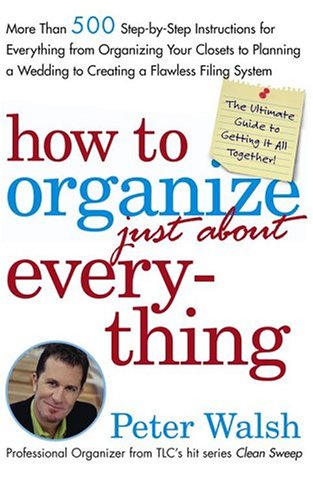
How to organize just about everything

Read enough books that tell you how to organize things, and they all start to sound alike. 100 pages of photographs later and you've seen the perfect but unobtainable goal, feel even worse about your own clutter and now need chocolate.

Peter Walsh's How to Organize just about Everything (Full title: How to Organize (Just About) Everything: More Than 500 Step-by-Step Instructions for Everything from Organizing Your Closets to Planning a Wedding to Creating a Flawless Filing System) is nothing like those other books.

The cross-referenced lists give you step-by-step instructions for closet cleaning, weekly home maintenance, how to keep your car clean, or open a restaurant, or find Mr. or Mrs. Right. There are no pictures, no expectations to meet, just lots of simple, clear lists.

Don't take my word for it. Maybe it isn't the perfect book for you. But you can check it out at your local library, and then if you're like me, be sure to read list #41: Return rentals on time.

I'm really looking forward to spending more time with this book.

Thursday, January 15, 2009

iphone as life organizer

I have been using an iphone since last summer as a personal organizer, and I highly recommend it for fellow ADD/ADHD'ers.

Admittedly it can be a HUGE distraction device. There are thousands of games -- let alone other apps -- available, and I probably spend about $10 a month trying new apps, plus looking at free ones.

With that in mind, I still say this tool is designed for distractable people in a good way, and here's why:

It's easy
(It's intuitive and cross referenced.)
When you fill in contact information, the device gives you a keypad for a phone number or buttons with [.com] for one-touch pushing for email addresses. Once you have your contacts put in, it auto links the phone field to the phone, the email address to your email, and the address field to google maps. It's so smart it's easy to use.

It's fun
(It's kinesthetic.)
Even if you're a notebook freak like me, there are limitations to any paper-based organizer. All the neon-colored ink, stickers, tabs and color-coded cross references in the world can't beat five minutes with the iphone's sliders and buttons.

Sliders bounce when they get to the end. You zoom in on pages by a movement so simple it will blow you away. You can't actually feel movement on the slick screen, but your brain fills in the gaps and you get the experience of using a three-dimensional device. Set it up for sound or no sound, it's just fun to use. Fun means I'm more likely to use it and want to use it.

It's small but huge
(It's portable and adaptable)
This can go with you anywhere and as long as you keep track of this ONE THING... you have a phone, phone directory, day planner, to-do list, etc. There are also lots of apps out there -- and websites with app connections -- to help improve your organization. I'll review my favorites in upcoming posts.

I have a mac, and I sync my iphone with my native mac programs, ical, and the apple address book for instance. I can't speak as to how well it works with a PC. I suppose if I were a PC user I would be really intrigued by the blackberry storm, which has a lot of iphone-like qualities.

But I think I'm a mac person in part because of my ADD, and therefore an iphone person for the same reason. Apple's design is really top notch, setting standards other organizers are trying to catch up to. There is no indication this will change any time soon.

One of the biggest challenge for ADD/ADHD'ers is our breakdown in organizational skills. By that I don't mean that we don't have them. Actually, our systems are quite complex and often amaze non add'ers. However, while most people limit their information intake, we do not. Further, because of our distractability, we face gaps in the process and end up storing huge amounts of information with poor processing.

A device that allows me to write (or photo tag) it all down and keep it in my pocket is just the thing.

Sunday, November 23, 2008

Pay your bills on time

Like a lot of ADDers, I have problems paying my bills on time. It's not that I don't have the money, it's just that trying to remember a date that on one month can be on a Wednesday, the next month on a Saturday, is IMPOSSIBLE. So yes, I forget to pay every month on time.

(Honestly, if the other two dozen people I work with didn't scramble for the paycheck drawer every pay day, I would forget that too, and have... for days.)

Learning to trust technology is difficult, but if you can, having your bills set to auto pay can save a ton of headaches and make you look more responsible to credit companies... which you are being.

Step 1. Planning To make this work you will need to create a budget so you have all your bills covered and a little savings left over each paycheck. This is not an easy step, but it's a different post.

Step 2. Gather materials you need Depending on the business, auto pays can be set up with either your credit card or your bank routing information.

  • To use your credit card, (or a bank atm card) you need to know the card number, the expiration date and the special three-digit id code on the back that allows you to verify online purchases. If your card is so old that the id code has rubbed off, you should replace it. You will not be able to use it without the code.
  • To use your checking account, you need to know your bank routing information. This is the series of numbers on your check that identify the bank and your personal account to other financial institutions. If, like me, you have not used paper checks in ages and deposit your checks using generic deposit slips, you may need to call your bank to get the routing number. You should know your own bank account number, but if you don't, they should be able to help with that too, though they should require you to come in and ask for it in person to verify you are you.

Step 3. Set up the accounts Contact each of your main monthly bill obligations and ask about monthly auto pay options. I have been able to do this with everything from my credit card to my local trash service.

Step 4. Make them fit your schedule Try to balance your auto pays so they don't all fall on the same paycheck. Some utilities are not very accommodating with this, but services you initiate yourself, including mortgages and car loans, should be able to adjust due dates for you. Further adjusting these so they fall in a narrow range of days, or possibly on the same day, can save confusion as well.

Step 5. Track your spending Know what is coming out when. I keep track of my checking account online through my bank, so I have constant access to what has come in and what has not. If I were really clever, I could use this to create an excel sheet of all my bills and the days the money comes out. Then I would know when my obligations are met and I'm into my discretionary income. ;)

Wednesday, November 19, 2008

Only remember one password for the rest of your life

I am a webmaster for a small-sized public library, and my work requires me to keep literally hundreds of website passwords organized for databases we subscribe to, third-party website services, in-house services, etc.

This, on top of private bill-pay and personal websites, is enough to drive most people to distraction, let alone an ADDer.

I asked our very non-ADD tech person how she organizes her passwords. She uses a single password-encrypted Microsoft Excel spreadsheet, with the name of the website, the login and pass all as tabled fields.

Mine now looks very different from hers. I have a separate, labeled, tab for each subgroup of passwords I use (including work-related personal and totally personal). I have also used the hyperlink function to create the website as a direct link, and I have added a notes field so I can put in more information as I need it to help remember things (like when passwords change).

I have color-coded each page with eye-friendly bars, and used my favorite font, which makes the entire thing a joy to look at rather than an obligation.

Lastly, I put a copy of it onto a tiny thumb drive, which I carry around my neck constantly. If I need it at work, at home, or at another business, all I need to do is plug in and go. Further, if I ever need to leave a copy of it for my boss, all I need to do is copy it, remove the personal sheets from the copy, turn off password-encryption from the main (publish) menu, and VOILA, instant password set for others to use.